From Hotspot to Solution: A Technician's Guide to Thermal Fault Finding
Update on Oct. 7, 2025, 9:04 a.m.
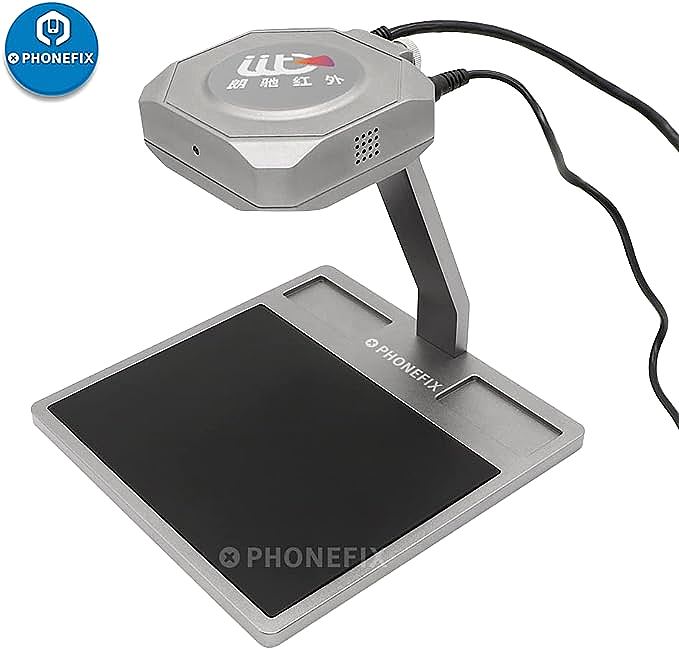
So, you’ve got a thermal camera. Maybe it’s a fancy benchtop unit, or a flexible one like the Qianli LINC IIT ShortCam. You’ve seen the videos online—a technician points it at a dead motherboard, a spot glows red, and minutes later, the device is fixed. It looks like magic. But I’m here to tell you, it’s not magic, and it’s certainly not about just pointing and shooting. Having the tool is easy. Using it to get repeatable, accurate results that actually speed up your repairs? That takes a method.
I’ve spent years hunched over circuit boards, and I can tell you that a thermal imager is one of the biggest leaps forward in our field since the multimeter. But I’ve also seen plenty of techs get frustrated with it, chasing false positives or misinterpreting its clues. This guide is the method I wish I had when I started. It’s a systematic workflow that will turn your thermal camera from a neat gadget into the most powerful diagnostic weapon on your bench.
Pre-Flight Check: Setting Up Your Thermal Investigation
Before you even think about plugging in that faulty PCB, you need to set the stage. A proper setup prevents 90% of the headaches down the line.
1. The Right Power: Forget hooking the board up to its original battery or a cheap wall adapter. Your single most important companion to a thermal camera is a current-limited, adjustable DC power supply. This is non-negotiable. It allows you to control the energy you’re putting into the board precisely. Start with your current limit set very low (e.g., 1A) and your voltage at a safe starting point (e.g., 1V).
2. The Clean Bench: Your thermal camera sees all heat. A hot soldering iron nearby, a sunbeam hitting your desk, even the warmth from your own hands can create confusing thermal reflections. Work in a thermally stable environment. Before you start, point the camera at your work area to ensure there are no stray hotspots.
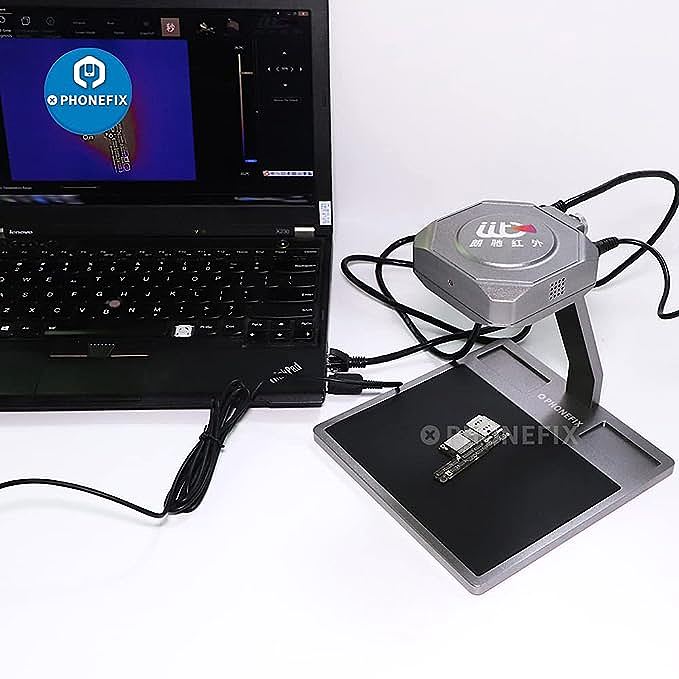
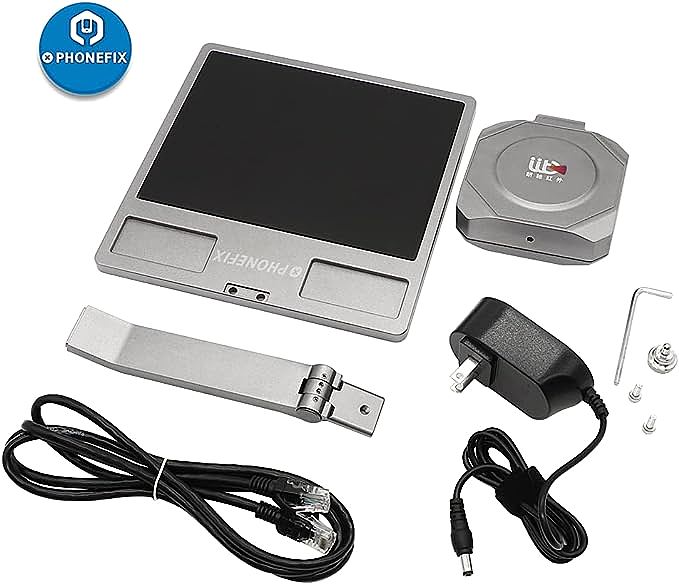
3. Software and Camera Setup: Get your rig ready. If you’re using a PC-based system like the ShortCam, connect it via USB and fire up the software. Take a moment to familiarize yourself with the key controls: switching between visible, thermal, and fusion modes; adjusting the color palette (I prefer “Ironbow”); and, most importantly, learning how to manually adjust the temperature scale or contrast to highlight subtle details.
Alright, your bench is clean, your power supply is set, and the camera is ready. Now, the real work begins. Forget randomly injecting voltage; we’re going to follow a protocol. This four-step process is what separates a lucky guess from a reliable diagnosis.
The Workflow: A Step-by-Step Diagnostic Protocol
Step 1: The Baseline Scan (Power Off)
Before applying any power, place the faulty board under the camera and take a snapshot or just observe it for a minute. This is your baseline. Is the whole board at a uniform room temperature? This simple step ensures you’re not about to chase a phantom hotspot caused by a lingering warm component from a previous test.
Step 2: The Power-Up (Low and Slow)
This is the critical moment. With the camera recording or your eyes glued to the live feed, turn on your DC power supply, still set to a low voltage like 1V. Don’t just jump to the board’s normal operating voltage. Why? Because a hard short will often get very hot even with minimal voltage. By starting low and slow, you can often isolate the primary point of failure before the heat has a chance to conduct across the board and light up other, secondary components. Slowly ramp up the voltage, watching the thermal image for the very first component that starts to glow. That’s your prime suspect.
Step 3: Interpreting the Heat Map
A hotspot is a clue, not a verdict. The shape and behavior of the heat tell a story.
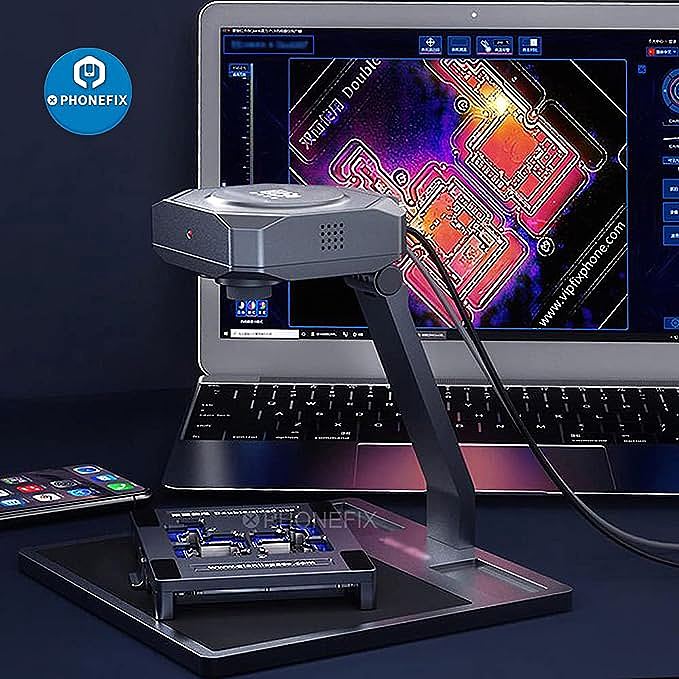
* A sharp, tiny, intense point: This often points to a shorted multi-layer ceramic capacitor (MLCC). They tend to fail in a very localized way.
* A larger, more diffuse glow: This could be a BGA chip, like a power management IC (PMIC) or even the CPU/SoC, failing internally. The heat is spread over a larger silicon die.
* A line of warmth: This might indicate a short on a power rail, with the heat originating from the trace itself or multiple components along it.
* Slowly spreading warmth: If you see a spot get hot and then the heat slowly bleeds into the surrounding area, you’re seeing conduction. Pay attention to where the heat started, not where it ends up.
Step 4: Verification (The Trusty Multimeter)
Your thermal camera has done its job: it’s given you a location. It has turned the entire PCB into a single point to investigate. Now, turn off the power and pick up your multimeter. Switch to resistance mode. Place one probe on ground and the other on the input or output of the component you identified. Do you see a near-zero ohm reading? You’ve likely confirmed your short.
This final step is crucial. Never replace a component based on thermal data alone. Remember to distinguish the victim from the culprit. A hot power management chip might be overheating because a tiny capacitor on one of its output lines is shorted to ground. The camera shows you the chip is hot (the victim), but your multimeter and schematic will prove the capacitor is the true culprit.
Advanced Tactics from the Field
Following that workflow will solve 80% of your thermal-related problems. But what about the other 20%? The tricky intermittent faults, the minuscule leaks? For those, we need to pull a few more tricks out of our bag.
The Comparison Mode: A Tale of Two Boards
One of the most powerful features in thermal imaging software is the ability to compare a faulty board to a known-good one. If you work on common models, take the time to build a reference library. Power up a healthy board, let its temperature stabilize, and capture a reference thermal image. When you’re diagnosing a faulty board, the software can then show you the difference between the two, instantly highlighting any abnormal hot or even cold spots (a cold spot can indicate an open circuit).
Hunting for Ghosts: Detecting Micro-Current Leaks
Sometimes a phone has terrible battery life, but no obvious short. This is often caused by a micro-current leak. This won’t create a blazing hotspot. To find it, you need to “turn up the volume” on your thermal camera. In the software, manually adjust the temperature scale. Instead of a wide range like 20-100°C, narrow it down to something like 25-35°C. This stretches the color palette over a much smaller temperature window, dramatically increasing the visual contrast. A component leaking just a few milliamps, creating a temperature rise of only a degree or two, will now pop out on the screen as you watch it over 30-60 seconds.
Taming the Shine: Dealing with Reflective Surfaces
Shiny surfaces like metal shields or fresh solder balls are thermal mirrors. They’ll show you the reflection of your warm face, not their own temperature. The professional solution is to use a can of developer spray (used for detecting cracks in welding). A very light, thin coat creates a temporary, thermally uniform matte surface. A quicker, non-permanent fix is to place a small piece of matte electrical tape over the area of interest. The tape’s known high emissivity will give you a much more reliable reading.
Case Study: Solving a No-Power Fault
Imagine an iPhone motherboard that’s dead—zero power draw. Following the workflow, we start at 1V/1A. Nothing. We slowly ramp up to 4.2V. Suddenly, the power supply shows a 200mA draw, and a PMIC starts to glow warmly on the thermal camera. A beginner might replace the PMIC. But we’re not beginners. We check the schematic. We see one of its output rails, PP1V8_ALWAYS, goes to a dozen different components. We use our multimeter to check that rail to ground—it reads 0 ohms. A dead short. The PMIC was just the victim, working hard to supply a shorted line. We inject 1V directly onto that rail. This time, the camera shows a new, tiny, sharp hotspot on a small capacitor far away from the PMIC. We verify it with the multimeter, remove it, and the short is gone. The board powers on.
Conclusion: It’s the Method, Not Just the Machine
A thermal camera is not a magic bullet. It’s an information-gathering tool. Its true power is unlocked when you, the technician, combine its data with your knowledge of electronics and a disciplined, repeatable process. By following a systematic workflow—prepare, power up slowly, interpret carefully, and always verify—you can move beyond guesswork. You can find faults faster, increase your repair success rate, and tackle jobs you might have previously written off as unfixable. The machine shows you the heat; your method finds the solution.
Disclaimer: The mention of any specific product is for illustrative and educational purposes only and does not constitute an official endorsement or review.